 Shadow Edge
Upload your cookie file to Shadow Edge
Once you've exported a cookie file from your browser, the last step is to hand it to Shadow Edge so it can fetch your sources on your behalf. This page covers uploading the file, how long it lasts, how it's kept safe, and what to do if something goes wrong. It's the same for every platform — YouTube, Bilibili, Apple Podcasts, and the rest.
Haven't exported a file yet?
You'll need a cookie file saved on your computer first. Pick your browser and follow that guide, then come back here:
Upload the cookie file
- Open Shadow Edge and go to Account → Platform cookies.
- Select the platform you exported from (for example, YouTube).
- Add the cookie file you saved (for example,
www.youtube.com_cookies) in either way:- Click Choose file and pick it from your computer, or
- Drag the file straight from your downloads into the upload box.
- Click Save for {platform} at the bottom right (for example, Save for YouTube).
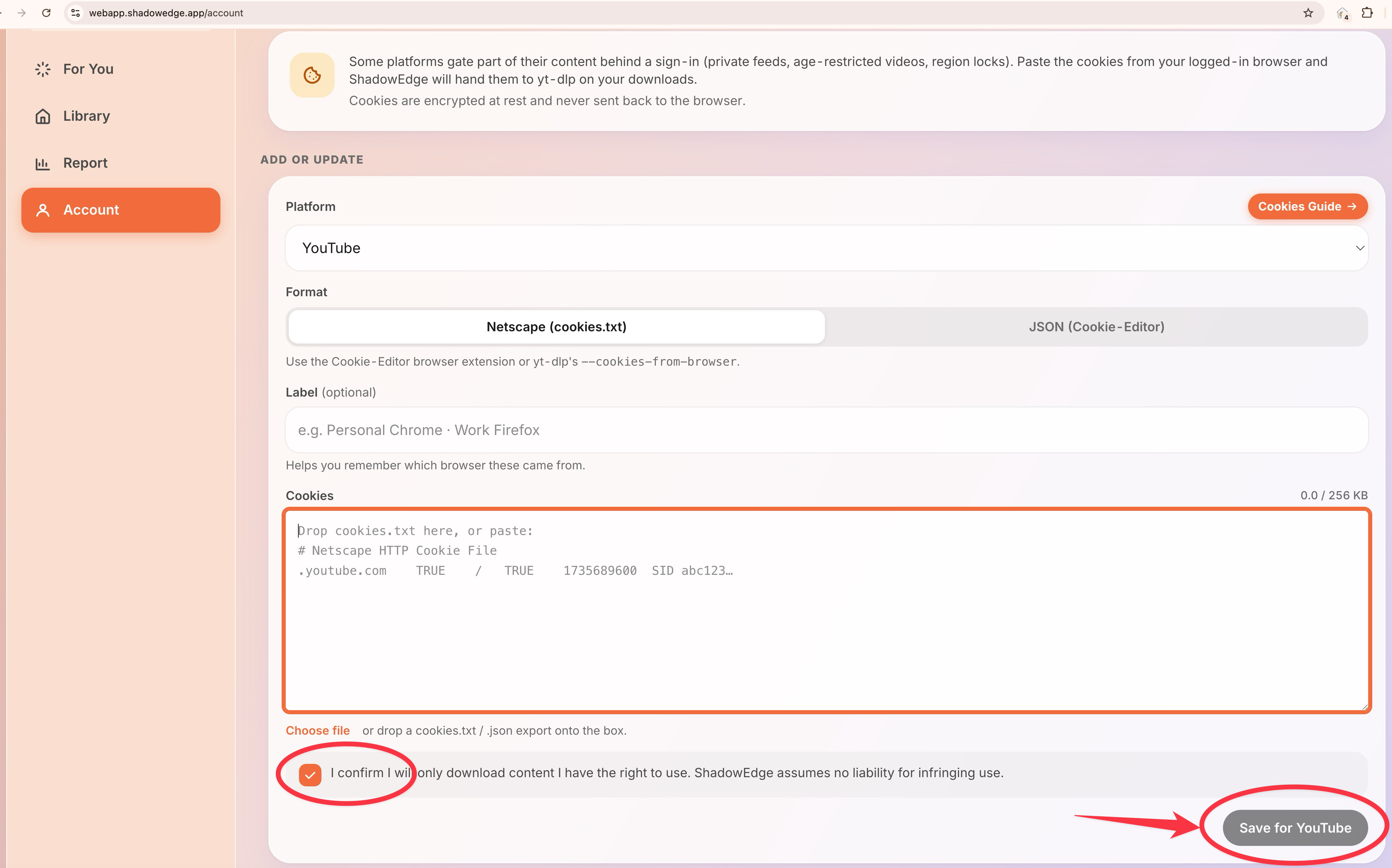 Showing the platform selector, the drop area with the Choose file button, and the Save for YouTube button at the bottom right
How long does the file last?
Most platforms refresh your sign-in on a schedule (often 1–4 weeks for YouTube, shorter for some sites). When Shadow Edge can no longer use your cookies, you'll see a Re-export needed badge in Account → Platform cookies. To refresh, just export a new file from your browser and upload it again — the new file replaces the old one.
Where the file is stored
When you upload a cookie file, it's scrambled before it's stored, and it's only unscrambled for the few seconds Shadow Edge is actually fetching a source for you. Even our own team can't read the contents. We never share platform-cookie data with anyone, and you can delete it at any time from Account → Platform cookies.
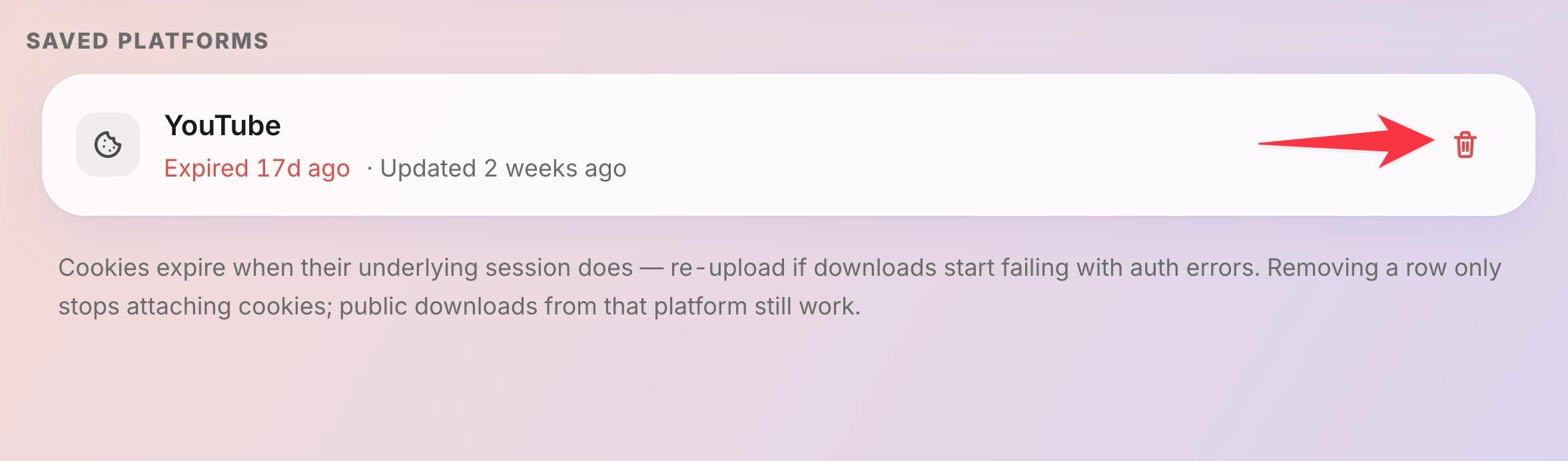 Delete cookies button
Troubleshooting
- "Cookie file rejected." Make sure the file you uploaded is the one you exported with Get cookies.txt LOCALLY (or the Firefox add-on), in the Netscape format. A screenshot or a file saved in another format won't work.
- Practice still fails after upload. The cookie may have expired between exporting and uploading. Export a fresh file and upload it again.
- Wrong platform. Make sure the platform you picked in Account → Platform cookies matches the website the file came from — the filename usually starts with the website's address (e.g.
www.youtube.com_cookies). - It worked before and stopped. Your sign-in expired or you signed out in the browser you exported from. Export and upload a fresh file.