 Shadow Edge
Tap a word: look it up, hear it, and practice it
While you're practicing, any single word in the line you're on can be tapped to dig into it — see what it means, hear how it's said, or practice just that one word on its own. It works the same way in the split-view player on your computer and in the current-line text on your phone. This is handy when a line has one word you don't know or can't quite say, and you don't want to leave your practice to go look it up.
Tapping a word
In the line you're currently practicing, each word is lightly marked with a coral underline to show it can be tapped. Punctuation stays attached to its word but isn't part of what you tap. Click or tap a word and a small card opens right next to it — just above or below the word — with three choices: Define, Pronounce, and Practice. The card tucks itself to stay on screen: it flips to the other side of the word if there's no room, and on a phone it slides up from the bottom so your thumb can reach it. To close it, tap anywhere else or press Esc.
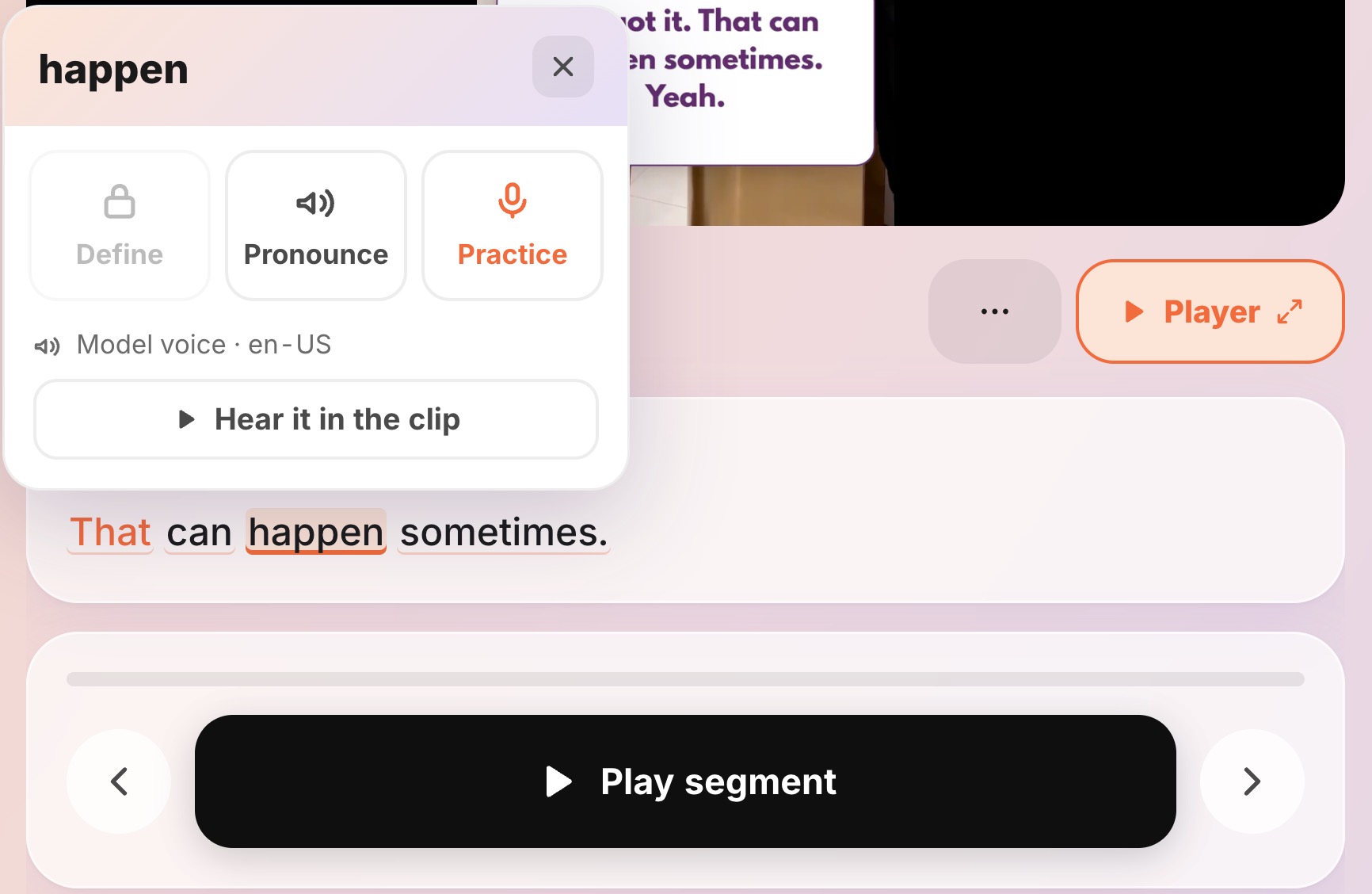 Words in the current line carry a subtle coral underline
Define — what the word means
Choose Define and the card expands in place to show, without leaving your practice:
- the word's part of speech (noun, verb, and so on);
- its meaning in your own language — whatever you've set as your first language in your profile;
- a one-line note about how it's being used here; and
- a "meaning in this sentence" tag, so you get the sense that fits this line rather than a generic dictionary list.
The definition is looked up for the exact word in its context, so the first time you open one you may briefly see a spinner and "Looking up '…' in this context…" while it's fetched.
Pronounce — hear it said
Choose Pronounce and the word plays straight away (the button gives a little pulse while it speaks). It's spoken in the accent you've chosen in your profile, and the button is labeled with that accent so you know what you're hearing. Just below it, Hear it in the clip plays the word the way the original speaker said it in your source — useful for catching the difference between a clean reference pronunciation and how it sounds in real, connected speech.
Practice — record just that word
Choose Practice and a sheet slides up showing the word large, with its pronunciation spelled out in phonetic symbols and a Hear it button. From there it's the familiar loop, but focused on the single word:
- Record yourself saying the word.
- It's scored just like a line is.
- You get the sound-by-sound breakdown for that word — the same per-sound readout you see elsewhere, so you can tell exactly which sound to fix.
Being able to drill one tricky word in isolation — instead of re-recording the whole line every time — is often the fastest way to get a stubborn sound right.
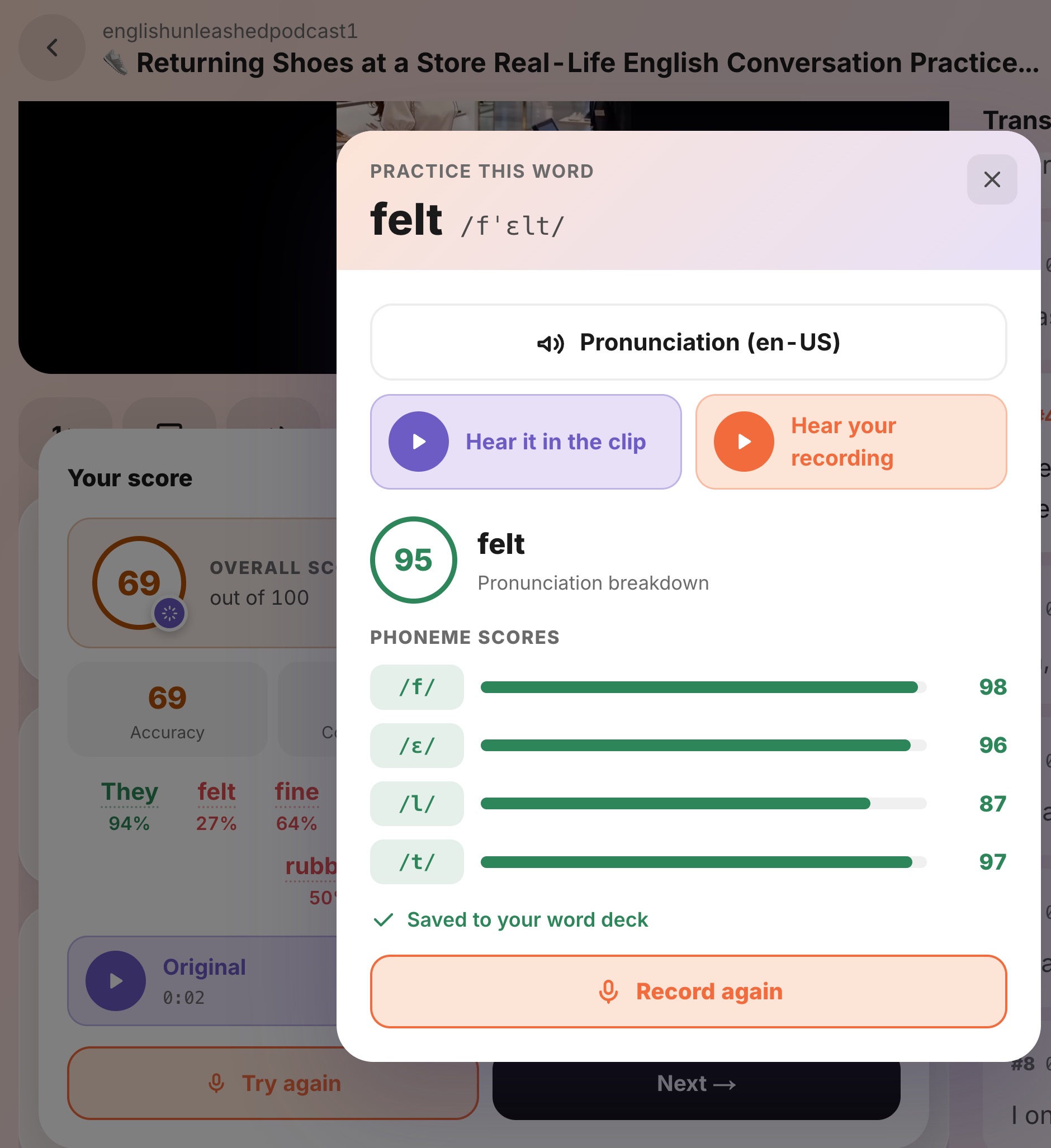 Ends with the sound-by-sound breakdown for the word
Save it to your word deck
The word is saved to your WordEdge word deck automatically. To keep practicing it, open WordEdge and find the word in your deck. Shadow Edge and WordEdge share one account, so you're already signed in with the same login.
Want the bigger picture on scoring and the sound-by-sound view? See How pronunciation scoring works.