 Shadow Edge
Fixing the transcript: the segment editor
When Shadow Edge transcribes your own media, it splits it into short practice lines called segments and lines up each one with the audio. This is usually accurate, but not always perfect — a line might be split in an awkward place, two lines might belong together, or a word might be misheard. The segment editor lets you fix all of that on your own private media, so every line is exactly where you want it before you practice.
Opening the editor
Open one of your own sources, then choose Edit (from the More menu on the practice page). The segment editor opens.
It has two sides:
- On the right — the full list of segments, numbered in order, each with its time range and text. A counter at the top shows which one you're on (e.g. "7 / 58"). Click any row to edit it. Rows you've changed get an EDITED tag so you can see your work at a glance.
- On the left — a small player for the selected segment (play, previous/next, speed, volume) and all the editing controls for that one segment.
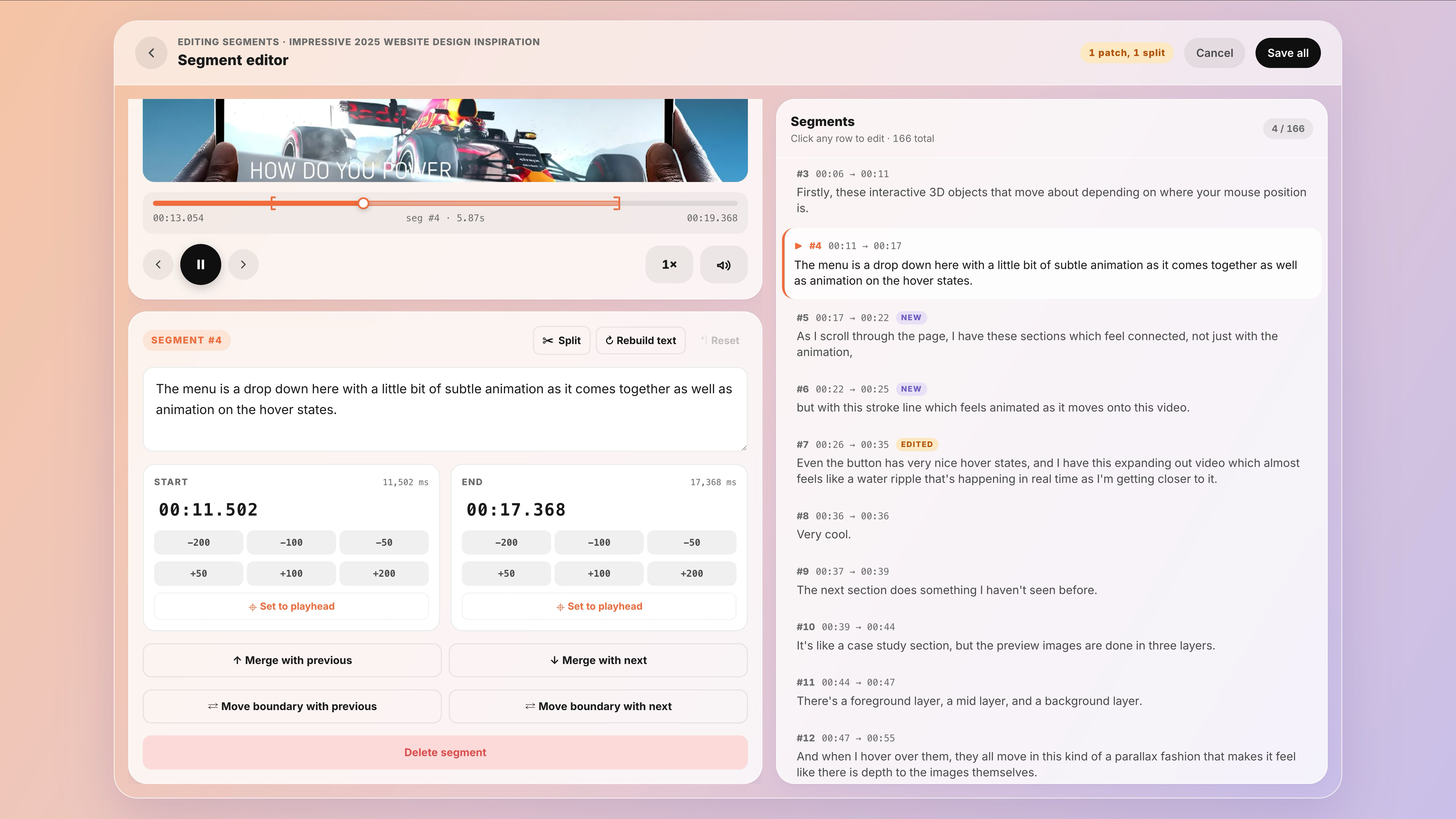 Showing a selected segment highlighted in the list
Fixing the words
To correct what a line says, click its row, then edit the text in the box on the left. This is for fixing typos and misheard words — correcting a word that was transcribed wrong. If you change your mind about a single segment, Reset puts it back to how it was before you touched it.
The Rebuild text button refreshes the line from its individual words — handy if the displayed sentence ever looks out of step with the highlighted words.
Fixing the timing (when a line starts and ends)
Each segment has a Start and an End time, shown as mm:ss.mmm (minutes : seconds . milliseconds). If a line begins a moment too early or cuts off too soon, you have three ways to fix it:
- Type it in. Click the time itself and edit it directly — useful when you already know the exact moment you want.
- Nudge it. Use the −200 / −100 / −50 and +50 / +100 / +200 buttons to move the start or end by that many milliseconds (a millisecond is one-thousandth of a second, so +200 is about a fifth of a second).
- Set to playhead. Play the audio, pause exactly where the line should begin or end, and click Set to playhead to snap that edge to where you paused.
A good target is to have each line start right on the first sound of the first word and end just after the last.
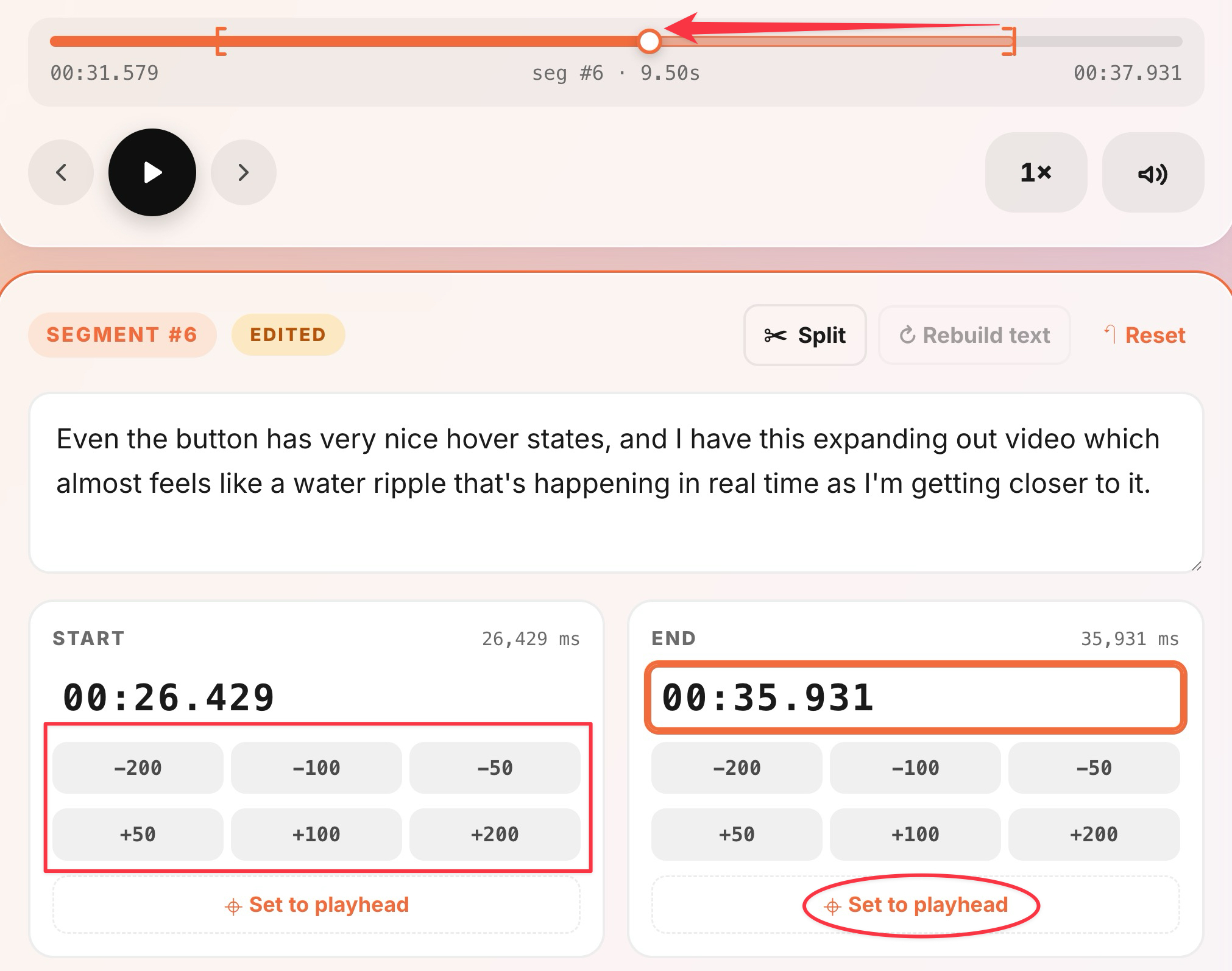 Highlighting the −/+ buttons and the Set to playhead link
Splitting one line into two
If a single segment is really two sentences, you can split it. Click Split, then choose the point where the line should break. The first part keeps its place (and any recordings you've already made on it); the second part becomes a new line right after it.
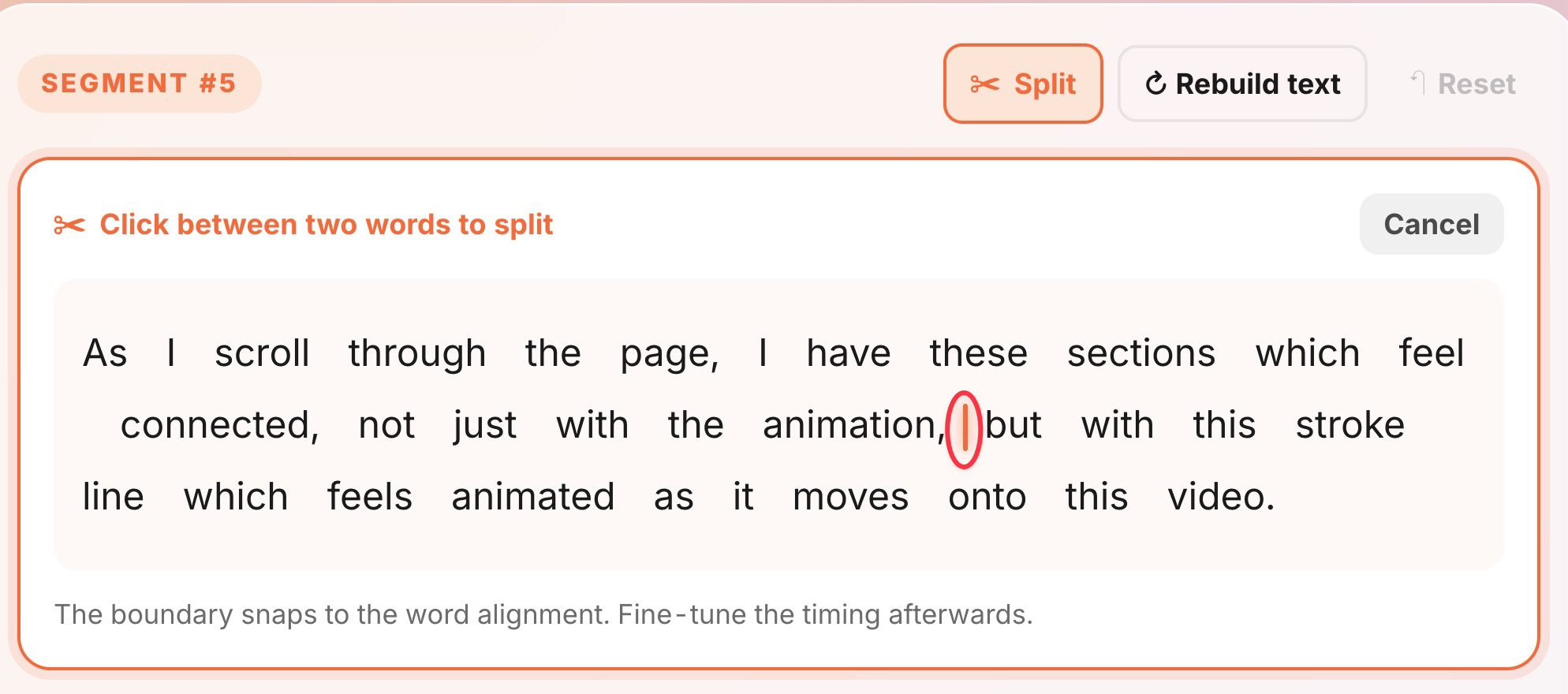 Showing how to choose where the line breaks
Joining two lines into one
If a sentence got broken across two lines, join them: on either of the two, use Merge with previous or Merge with next. The two lines become one, with their text and timing combined.
Moving a word or two across the boundary
Sometimes the words are split in the wrong spot — the last word of one line really belongs to the next, or the other way around. Instead of splitting and re-joining, use Move boundary with previous or Move boundary with next to shift just the dividing line between two segments. Both lines keep their place and their history; only the words on either side of the boundary change.
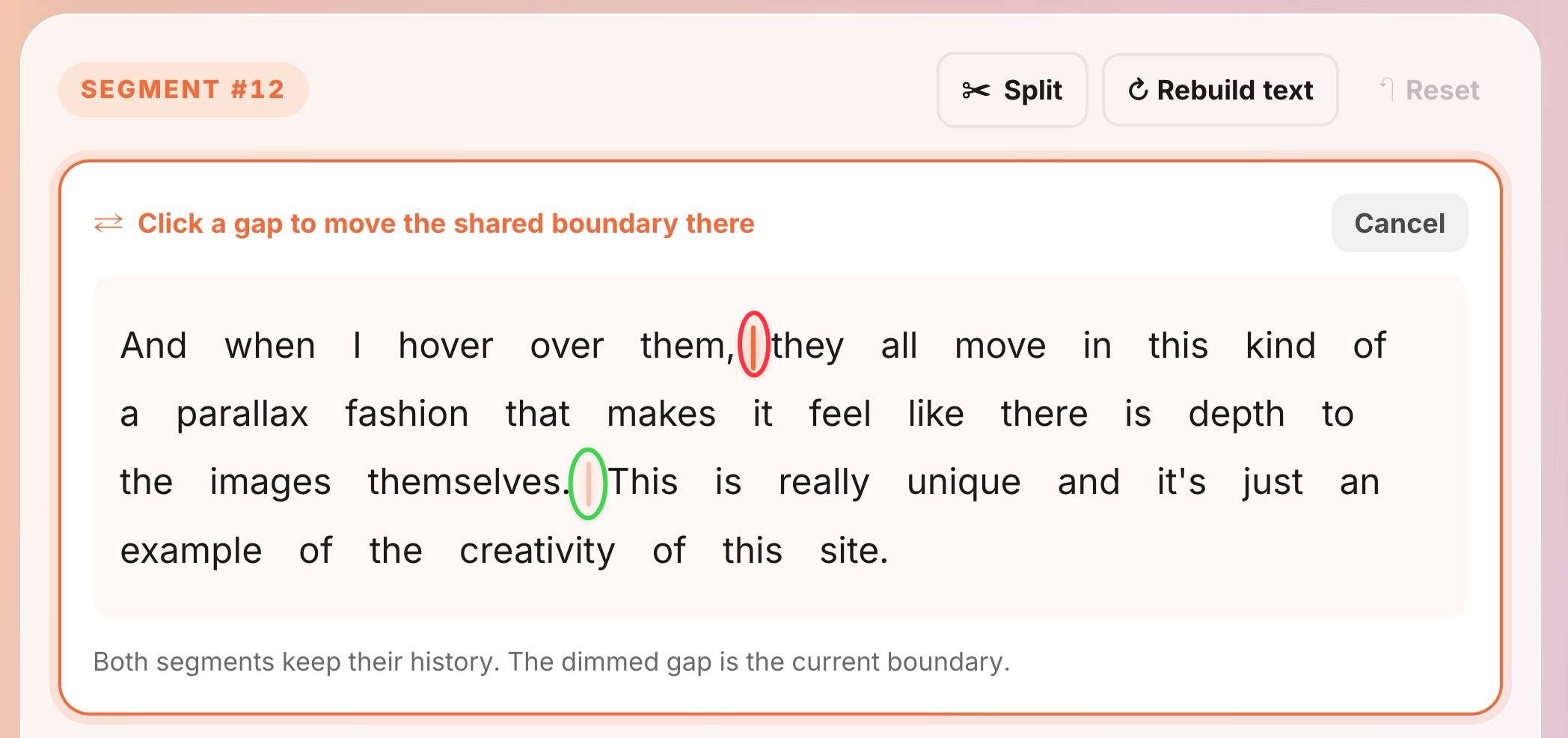 Showing the boundary being moved between two segments
Deleting a line
If a segment is just noise, music, or something you don't want to practice, click Delete segment.
Saving your changes
Your edits aren't saved until you choose to keep them. As you work, a small counter (for example "1 patch") shows how many changes are waiting. When you're happy:
- Click Save all to apply everything at once.
- Or click Cancel to throw away the changes from this session and leave the transcript as it was.
A couple of things to know
- You can't edit a transcript while it's still being made. Wait until the source shows Ready.
- If you have the same source open in two tabs and edit both, the last one you save wins — so edit in one place at a time.
Once your lines look right, head back and practice — see Your first shadowing session.